5 iPhone Settings That Change Everything
Noopur Kumari | Thu, 30 Apr 2026
Most iPhone users believe they already know their device well, but Apple hides several powerful features inside iOS that quietly improve everyday use. These hidden hacks can make typing faster, reduce stress, improve navigation, and enhance overall productivity without any third-party apps. From turning the keyboard into a trackpad to using the Apple logo as a shortcut button, each feature solves a common daily frustration in a smart way. This article explores five lesser-known iPhone tricks that can transform your user experience, making your device smoother, more efficient, and surprisingly more powerful than you ever realized before in daily life.

Apple may add 'undo' and 'redo' to iPhone home screen in iOS 27
Image credit : ANI
Most people use their iPhone every day without ever unlocking its real potential. You scroll, text, click, repeat thinking you already know everything. But here’s the truth: Apple hides powerful features inside iOS that completely change how your phone feels. Not big flashy updates but small hidden tricks that make life smoother, faster, and smarter. Once you know them, you won’t use your iPhone the same way again. Let’s unlock them.
![iPhone Hidden Cursor Control Trick]()
Ever struggled to place your cursor exactly where you want? Apple hid a genius solution inside your keyboard. Just press and hold the space bar. The keyboard becomes a trackpad, letting you slide your finger to move the cursor precisely. No more tapping 10 times to fix one word. This tiny trick saves time every single day and makes editing text feel effortless.
![iPhone Silent Typing Mode]()
That constant typing click sound can get annoying fast. But most people don’t know you can silence it without muting your phone.
Go to Settings → Sounds & Haptics → Keyboard Feedback.
Turn off Sound, keep Haptics on. Now you’ll feel soft vibrations instead of hearing clicks. It’s quiet, clean, and surprisingly satisfying—perfect for night use or focused work.
Your iPhone has a secret button on its back.
Go to Settings → Accessibility → Touch → Back Tap.
You can assign quick actions like screenshot, camera, or flashlight to a double or triple tap on the back of your iPhone. It feels almost magical because there are no buttons involved. Just tap the back near the Apple logo and your phone instantly responds with the action you set.
Most people think flashlight is just ON or OFF. Wrong. Open Control Centre and long-press the flashlight icon. A brightness slider appears instantly. Now you can adjust from soft glow to full brightness depending on your need. It’s perfect for reading at night, walking safely, or searching dark corners without blinding yourself.
Those red notification bubbles may look small, but they slowly create mental pressure and distraction every time you unlock your phone. Even without realizing it, they make your screen feel cluttered and unfinished. The good news is you can easily turn them off in settings and enjoy a cleaner, calmer experience.
Go to Settings → Notifications → select app → turn off Badges.
Your home screen instantly looks cleaner, calmer, and less overwhelming. No more visual pressure from unfinished tasks. It’s a simple change that makes your phone feel peaceful again.
These aren’t just “hidden features.” They are small upgrades that completely change how your iPhone feels in daily life. Faster typing. Less stress. Smarter shortcuts. Cleaner screen. Apple built them quietly but once you start using them, you’ll wonder how you ever lived without them. Your iPhone didn’t change. You just unlocked it.
Unlock insightful tips and inspiration on personal growth, productivity, and well-being. Stay motivated and updated with the latest at My Life XP.
Q1. Are these iPhone hacks available on all models?
Most of these features work on newer iPhones running updated iOS versions, especially models supporting Accessibility and Back Tap options.
Q2. Do these hidden features slow down the phone?
No, they are built-in iOS functions designed by Apple, so they run smoothly without affecting performance.
Q3. Is Back Tap safe to use?
Yes, Back Tap is a secure Accessibility feature. It only triggers actions you assign and does not affect system safety.
Q4. Can I turn these features off anytime?
Yes, all these settings can be enabled or disabled anytime from the Settings app.
Q5. Do I need third-party apps for these tricks?
No, everything mentioned is already built into iOS—no external apps required.
Turn Your Keyboard into a Secret Trackpad
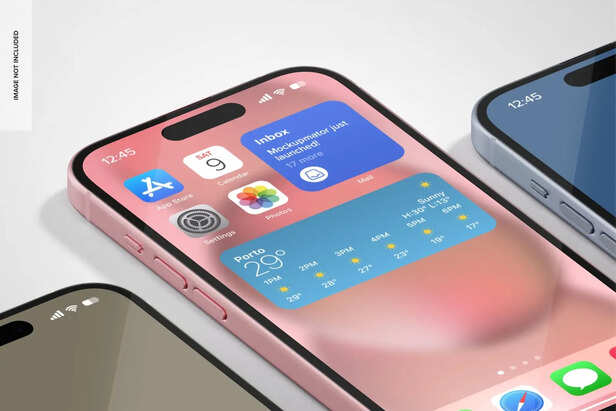
iPhone Hidden Cursor Control Trick
Image credit : Freepik
Ever struggled to place your cursor exactly where you want? Apple hid a genius solution inside your keyboard. Just press and hold the space bar. The keyboard becomes a trackpad, letting you slide your finger to move the cursor precisely. No more tapping 10 times to fix one word. This tiny trick saves time every single day and makes editing text feel effortless.
Silence Keyboard Without Losing Vibration
iPhone Silent Typing Mode
Image credit : Freepik
That constant typing click sound can get annoying fast. But most people don’t know you can silence it without muting your phone.
Go to Settings → Sounds & Haptics → Keyboard Feedback.
Turn off Sound, keep Haptics on. Now you’ll feel soft vibrations instead of hearing clicks. It’s quiet, clean, and surprisingly satisfying—perfect for night use or focused work.
Turn Apple Logo into a Hidden Button
Go to Settings → Accessibility → Touch → Back Tap.
You can assign quick actions like screenshot, camera, or flashlight to a double or triple tap on the back of your iPhone. It feels almost magical because there are no buttons involved. Just tap the back near the Apple logo and your phone instantly responds with the action you set.
Control Flashlight Like a Pro
Remove Red Notification Stress
Go to Settings → Notifications → select app → turn off Badges.
Your home screen instantly looks cleaner, calmer, and less overwhelming. No more visual pressure from unfinished tasks. It’s a simple change that makes your phone feel peaceful again.
Small Tricks, Big Difference
Unlock insightful tips and inspiration on personal growth, productivity, and well-being. Stay motivated and updated with the latest at My Life XP.
Frequently Asked Questions (FAQs)
Most of these features work on newer iPhones running updated iOS versions, especially models supporting Accessibility and Back Tap options.
Q2. Do these hidden features slow down the phone?
No, they are built-in iOS functions designed by Apple, so they run smoothly without affecting performance.
Q3. Is Back Tap safe to use?
Yes, Back Tap is a secure Accessibility feature. It only triggers actions you assign and does not affect system safety.
Q4. Can I turn these features off anytime?
Yes, all these settings can be enabled or disabled anytime from the Settings app.
Q5. Do I need third-party apps for these tricks?
No, everything mentioned is already built into iOS—no external apps required.