Laptop Cleaning Hack: This Cotton Swab Trick Finds Hidden Dust
Noopur Kumari | Aug 31, 2026, 14:00 IST
A cotton swab can help remove loose dust from hard-to-reach laptop areas, including keyboard edges, touchpad borders, seams and vent surfaces. But safe cleaning is more important than removing every speck. Always switch off and unplug the laptop first. Keep swabs dry, avoid ports and vents, and use a suitable microfibre cloth for the screen.

Laptop Cleaning Hack
Image credit : Freepik
Your laptop may look perfectly clean, but some of the dirtiest spots could be hiding right in front of you. Dust, hair, crumbs and tiny particles can settle between keyboard keys, around the touchpad, inside seams and near ventilation openings where a regular cloth simply cannot reach. This is where a simple cotton swab can help. Its small tip gives you better control for cleaning narrow, accessible areas without putting unnecessary pressure on the device. But there is one important catch: using a cotton swab incorrectly can push dust deeper or leave fibres behind.
![Cotton Swab Cleaning Dust Around Laptop Keys]()
The keyboard is one of the biggest dust traps on a laptop. Even when the keys appear clean, tiny particles can remain around their edges and between narrow spaces. A dry cotton swab can help pick up loose dust from these areas with greater precision than a large cloth. Move it gently around the sides of the keys without pressing hard. If crumbs or debris are stuck deeper inside, do not try to force them out with the swab. Slow, gentle cleaning is safer than aggressive scrubbing, especially because laptop keyboards can contain delicate mechanisms underneath the keys.
![Cleaning Dust Around a Laptop Touchpad]()
The touchpad surface may look spotless while dust and skin oils quietly collect around its border. These narrow edges are difficult for a regular cloth to reach, making them another useful place for a cotton swab. Use a completely dry swab and slowly follow the outer seam without applying pressure. Pay special attention to the corners, where small particles can accumulate. For the touchpad surface itself, use a soft microfibre cloth. If you need a cleaning solution, apply a small amount to the cloth rather than directly onto the laptop to reduce the risk of liquid entering sensitive areas.
Laptop lids, palm rests and outer panels often contain tiny seams where dust quietly settles. These areas can be difficult to clean with a normal cloth because its larger surface cannot follow the narrow edges. A dry cotton swab can gently collect loose particles from accessible seams. Rolling the swab slightly as you move it can help the cotton pick up dust rather than simply pushing it along. However, never insert the swab deeply into a gap. If the opening leads towards internal components, stop at the surface you can safely reach. The goal is gentle surface cleaning, not reaching inside the machine.
Laptop vents deserve attention because they help air move through the device. Dust around the visible edges can be carefully removed with a dry cotton swab. Run the tip gently along the outside of the grille, but never push it through the openings. Doing so could move dust further inside or leave cotton fibres behind. If you notice heavy dust buildup deep inside the ventilation system, a suitable air blower or professional cleaning may be a better option. Remember, the purpose of cleaning the vent is to remove accessible surface debris, not to force a cotton swab into the internal hardware.
One of the biggest mistakes is assuming that a damp cotton swab will clean better. Around laptop keys, seams and openings, moisture can create unnecessary risk if it reaches internal components. Keep the cotton swab completely dry when cleaning these areas. For exterior surfaces that require gentle wiping, use a small amount of suitable cleaning solution on a microfibre cloth instead. Never spray liquid directly onto the laptop. A simple rule makes the process easier: dry swab for narrow gaps, suitable microfibre cloth for surfaces. The less unnecessary moisture around electronics, the safer your cleaning routine becomes.
A cotton swab may look perfect for cleaning inside USB ports, headphone jacks and other openings, but pushing it inside can create problems. It may compact dust further into the port or leave cotton fibres behind. Clean only the accessible exterior unless the manufacturer recommends a specific method. The screen also needs different treatment. Avoid rubbing it with a cotton swab because fibres and uneven pressure can create problems. Instead, use a clean microfibre cloth designed for displays. Most importantly, never spray cleaning liquid directly onto the screen or near its edges.
The most important laptop cleaning habit has nothing to do with cotton swabs. Turn the laptop off and unplug it before you begin. This simple step reduces unnecessary risk while you clean around keys, seams, the touchpad and ventilation openings. Once the device is powered down, start with loose surface dust and work gently through the accessible areas. Do not rush or try to reach hidden internal components with household cleaning tools. If your laptop has heavy internal dust buildup or overheating concerns, professional servicing may be safer. A clean laptop is useful, but safe cleaning should always come first.
Unlock insightful tips and inspiration on personal growth, productivity, and well-being. Stay motivated and updated with the latest at My Life XP.
Start With the Keyboard

Cotton Swab Cleaning Dust Around Laptop Keys
Image credit : Freepik
The keyboard is one of the biggest dust traps on a laptop. Even when the keys appear clean, tiny particles can remain around their edges and between narrow spaces. A dry cotton swab can help pick up loose dust from these areas with greater precision than a large cloth. Move it gently around the sides of the keys without pressing hard. If crumbs or debris are stuck deeper inside, do not try to force them out with the swab. Slow, gentle cleaning is safer than aggressive scrubbing, especially because laptop keyboards can contain delicate mechanisms underneath the keys.
Check the Touchpad Edges
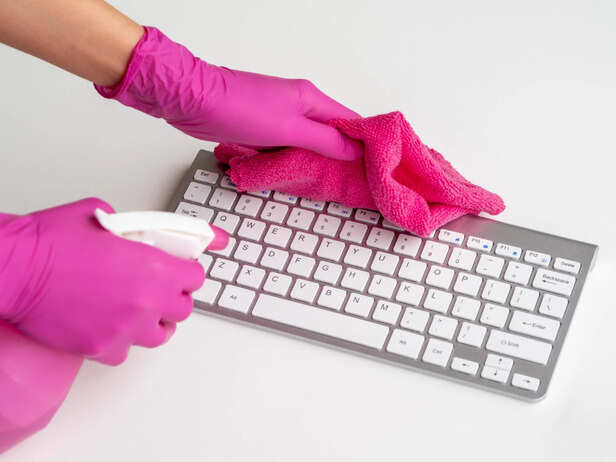
Cleaning Dust Around a Laptop Touchpad
Image credit : Freepik
The touchpad surface may look spotless while dust and skin oils quietly collect around its border. These narrow edges are difficult for a regular cloth to reach, making them another useful place for a cotton swab. Use a completely dry swab and slowly follow the outer seam without applying pressure. Pay special attention to the corners, where small particles can accumulate. For the touchpad surface itself, use a soft microfibre cloth. If you need a cleaning solution, apply a small amount to the cloth rather than directly onto the laptop to reduce the risk of liquid entering sensitive areas.
Don’t Miss the Tiny Seams
Be Careful Around Vents
Keep the Swab Completely Dry
Avoid Ports and the Screen.
Always Clean When Powered Off
Unlock insightful tips and inspiration on personal growth, productivity, and well-being. Stay motivated and updated with the latest at My Life XP.